
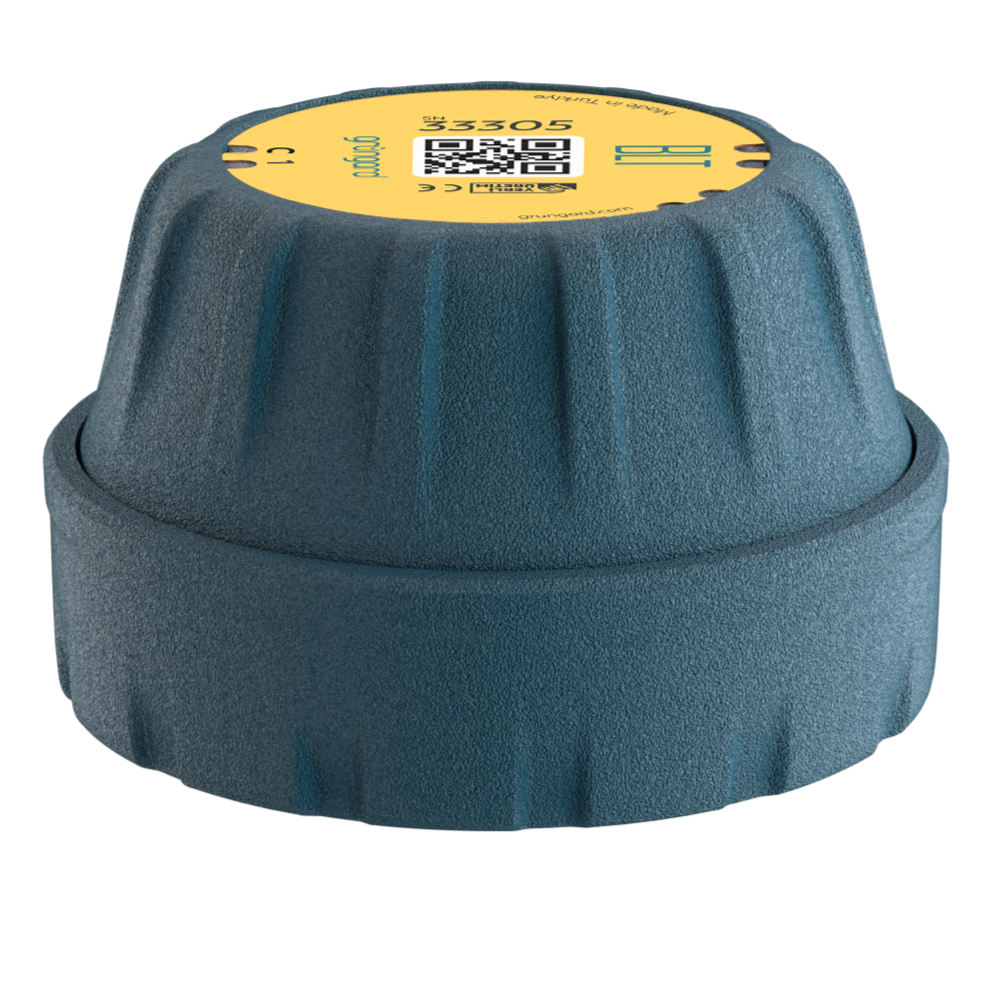
 Bluetooth
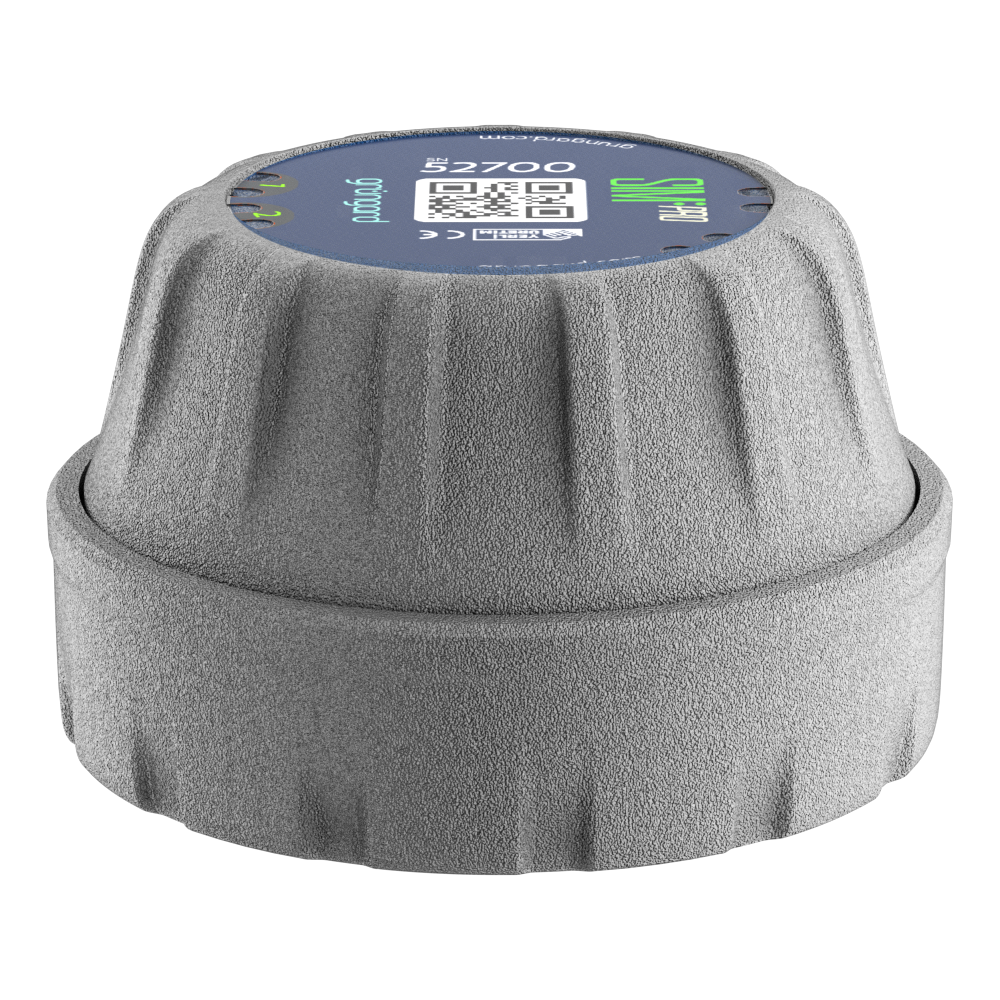 SIM Pro IOT
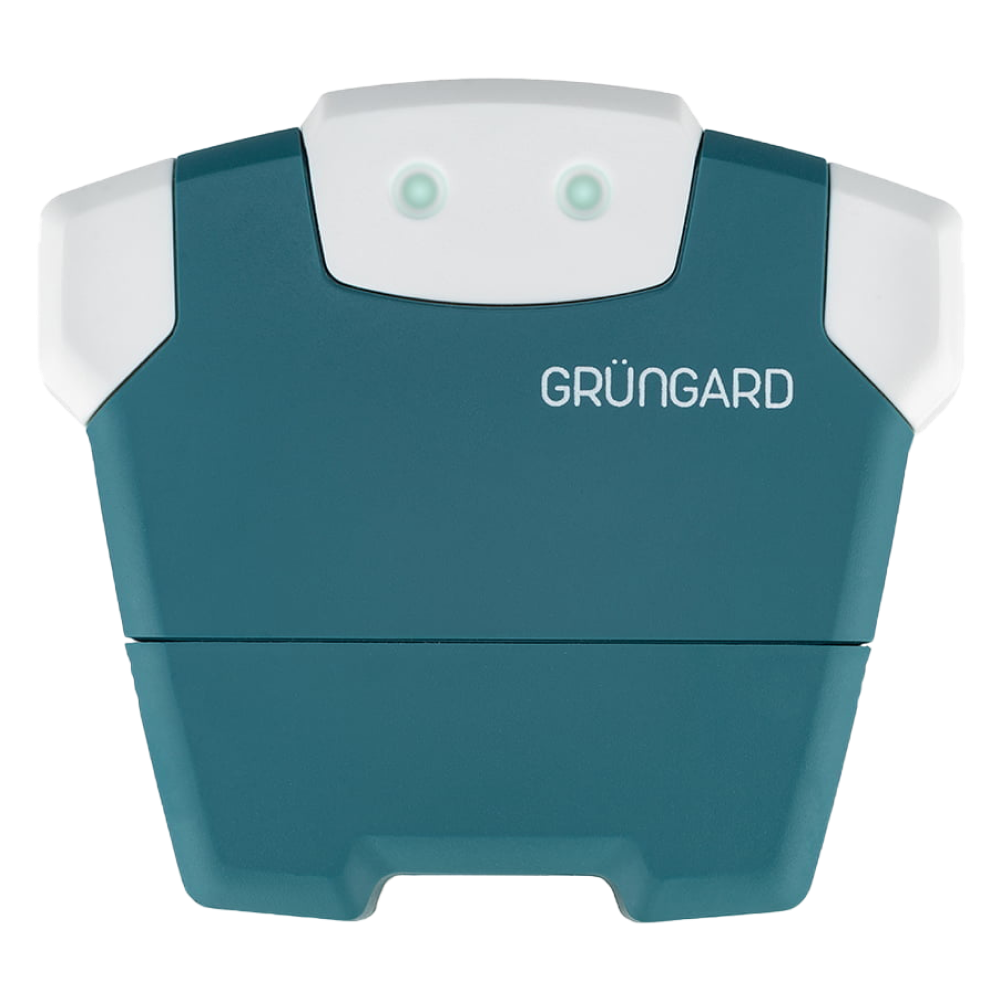 Wi-Fi & Bluetooth
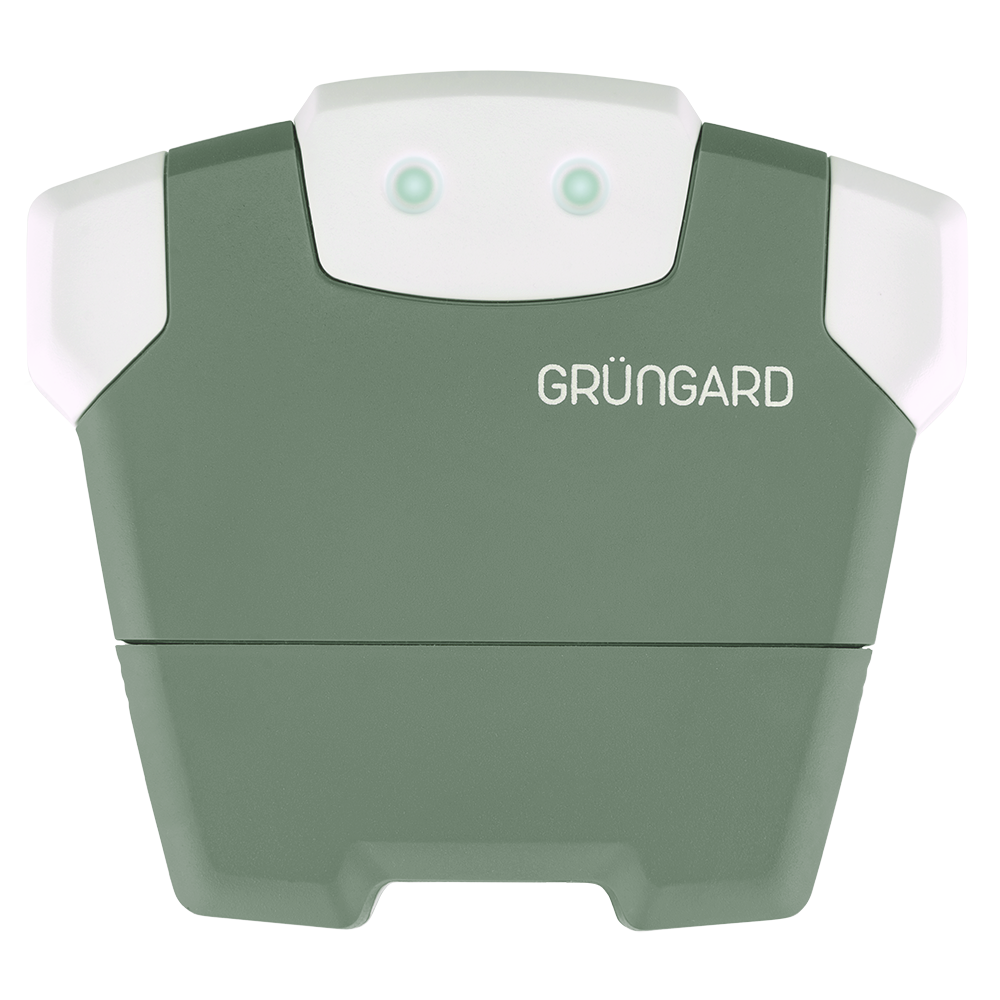 SimFarmer IOT

If you reach the “Select Network” step during setup and cannot see your home Wi-Fi in the list, follow the steps below in order.
1. Refresh the List #
Scanning for nearby networks may take a few seconds.
Tap the Refresh icon in the top-right corner of the network list and wait for the updated results.
2. Check the Device Mode #
Make sure the LED light on the device is on.
If there is no light at all, ensure the device has power.
If the LED is not orange, the device may not be in scanning mode.
Disconnect and reconnect the power, wait for the LED Wink sequence to start, and restart the setup process.
3. Distance & Signal Strength #
Try performing the setup closer to your router.
If the distance is too great or there are thick walls between the device and router, the device may not detect the Wi-Fi signal.
If setup works when you are near the router, consider using a Wi-Fi extender to improve coverage in the installation area.
4. Check the 2.4 GHz Frequency #
Grüngard Gardener devices support 2.4 GHz Wi-Fi only.
Most modern routers broadcast both 2.4 GHz and 5 GHz networks.
If your router is currently broadcasting only 5 GHz, your device will not list the network.
Check your router settings and ensure that 2.4 GHz is enabled.
5. Hidden SSID #
If your network name (SSID) is hidden in the router settings, it will not appear in the scan list.
In this case, use the “Other” or “Manual Entry” option at the bottom of the list and enter your network name and password manually.
Support #
If you still cannot see your Wi-Fi network after following all steps, contact us via WhatsApp Live Support to get assistance from our technical team.
Water your garden with confidence — control is now in your hands.


 +90 850 377 07 30


